Sometimes using the internet for the various benefit requires a little vigilant from computer hackers. So am going to show you how someone can get your passwords through your browser. You need to prevent people from getting your password.
If you have visited a website that requires you to enter your password, you may be familiar with any of the pictures below.
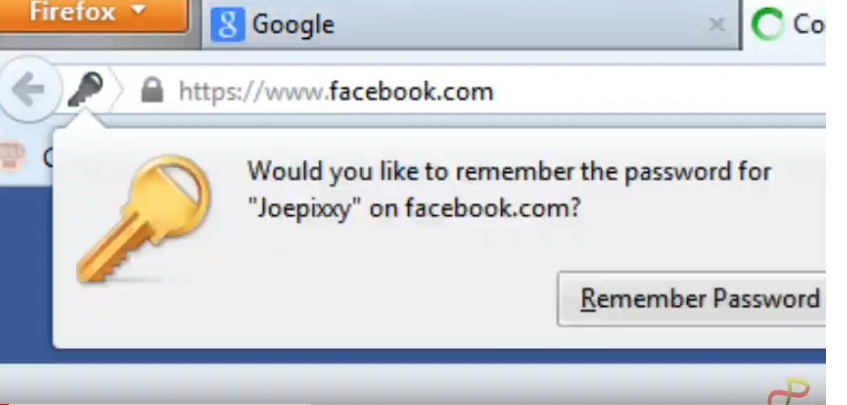

Did you click; “Remember Password”(Firefox), “Save Password”(Google Chrome)?
Storing your passwords in your browser comes with its own benefits.
1.For easier log in–if you store your password in your browser, you may not have to type in your password anytime you visit a particular website.
2.It helps in case you have so many different passwords for different websites: In such a case, you don’t have to worry your head over having to remember which password belongs to which website.
3.If you have a very long and complex password, storing your password in your browser is also an easy way for to log in into an account without having to rack your brains, just to remember your own passwords.
NOTE: The above advantages of storing your passwords in your browser only works if only you don’t log out from your account. If you happen to log out from your account, you will still have to enter it again anytime you visit a particular website; meanwhile, your password will still be stored in your browser.
From my opinion, the disadvantages of storing your passwords in your browsers far outweigh its benefits. In this tutorial, I will tell or show you two reasons why you don’t have to store your passwords in your browsers.
1.Other people can get access to your accounts. You may for one reason or the other, share your computer with someone else, and if you forget to log out from your account or find any other way to secure it from unauthorized access before giving it out, the person will obviously get access to your account.
2. The second reason, which is basically the focus of this tutorial is that your stored passwords in your browsers can be retrieved and stolen.
Let's see how that can be done and how to protect yourself.
Click here to get the video tutorial
ON GOOGLE CHROME
1. Click on the menu tab and choose “settings”
2. Click on “Show Advanced Settings”
3.Scroll down and under the “Password and forms” Click on “Manage saved passwords”.
4.A window will pop up showing you the website, username and the password in asterisk.
5.To see the password in plain text, click on the website and then click on “Show”.
1. Click on the menu tab and choose “settings”
2. Click on “Show Advanced Settings”
3.Scroll down and under the “Password and forms” Click on “Manage saved passwords”.
4.A window will pop up showing you the website, username and the password in asterisk.
5.To see the password in plain text, click on the website and then click on “Show”.
One of the best ways to prevent people from stealing your passwords is to delete them from time to time.
To do that, under the Privacy, click on “Clear browsing data”. A window will pop up make sure “Clear saved passwords” is ticked, and then click on “Clear browsing data”
ON FIREFOX
- 1.Click on “Firefox” at the top left-hand corner then choose “Options”
- 2.While in the Options windows, click on the “Security” tab then click on “Saved Passwords”
- 3.A window will pop up showing you the website and username. To view the password, click on “Show Passwords”
- 4.To delete the passwords, click on “Remove All Passwords”.
Another way of securing your password is using a master password, which you will have to type before you get access to the stored passwords. To do that, (In Firefox) while still in the “Security” tab, tick “Use a master password” then enter the password you want to use and save it. The next time you want to view your stored passwords, you will be asked to enter your master password before you can view any stored password.

